# Set working directory (replace this with your own)
setwd("/Users/yourname/Desktop/filename/filename")R Basics
R is a coding language and environment built for statistical computing and graphics that includes a large variety of statistical and graphical techniques.
Essentially, R gives us as political scientists an effective way to store and handle data, and a large selection of data analysis tools including graphing tools in a coherent and effective language.
R has its own “environment,” an area for us to write the code and see outputs, but the majority of users will use RStudio, an IDE, or integrated development environment.
RStudio is a software application with a code editor, compiler, debugger, and project manager in a single interface that allows us to write, edit, compile, and debug code in a singular location. Furthermore, in order to use R and RStudio you will need to download both.
There are four primary quadrants in RStudio:
- Source pane
- Console pane
- Environment pane
- Output pane
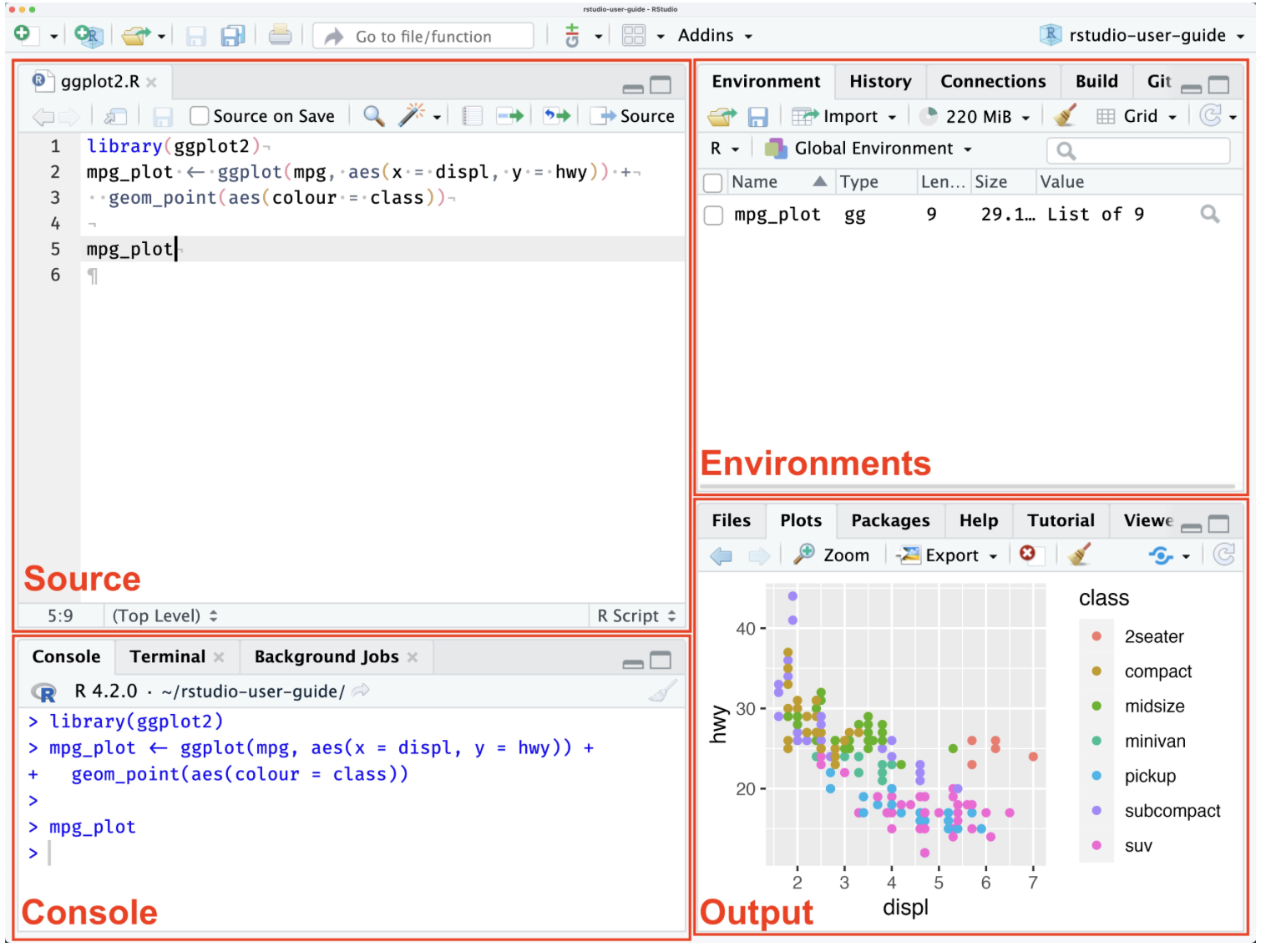
The source pane allows us to edit and view various code-related files, such as .R, .rmd, .qmd, .py, .css, or general text files such as .txt or .md.
- To open an existing file, use either the File → Open File… menu or the Recent Files menu to select from recently opened files.
- You can create a new file via the File → New File menu.
The console pane provides an area to interactively execute code.
The environment pane includes the Environment, History, Connections, Build, and Version Control System (VCS) tabs and displays any currently saved objects.
The output pane displays various outputs, such as plots, and contains the Files, Plots, R Packages, Help, Tutorial, Viewer, and Presentation tabs.
Setting up a Working Directory
It is important to keep all the files associated with a given project, such as data, scripts, analytical results, and figures, together. To do this we need to make a working directory.
To create a new working directory in RStudio:
- Use File → New Project or use the New Project button (available on the Projects toolbar in the top right corner or on the global toolbar at the top left corner).
- This will open the “New Project Wizard” popup.
- Click “New Directory”.
To set the working directory, there are two possible ways, using code or using RStudio directly:
Option 1: Using R Code
Option 2: Using RStudio Interface
On the top of the RStudio menu, click on Session.
Click Set Working Directory.
Then click To Source File Location.
To check if the working directory is set correctly, use the following code:
# Returns the filepath of the current working directory
getwd()
Writing out Text vs. Numbers
In R, to output text you will use single or double quotes:
"Hello World!"[1] "Hello World!"'Hello World!' [1] "Hello World!"Calculations
R at its core is a gigantic calculator, so let’s practice doing basic calculations.
# addition
10 + 2
[1] 12# subtraction
10 - 2[1] 8# multiplication
10 * 2[1] 20# division
10/2[1] 5# exponent
10^2[1] 100Creating Objects
To output numbers you just type out the number. Also, note that I do not use a comma when writing out my four-digit number:
5[1] 575[1] 751000[1] 1000In R, we save our data in what we call objects! Objects store information about different types of elements. If you know any other coding languages, they typically call these variables.
# The <- saves the calculation as math
math <- 10 + 2
#print()
print(math)
[1] 12# The = saves the calculation as math
math = 10 + 2
# print() will print out what is saved in the object math
print(math)[1] 12Data Types in R
There are 6 types of data in R that are important to know, but the essential ones are logical, numeric, and character. We will focus on three!
Logical Also known as boolean data, logical data is shown as TRUE or FALSE values:
logical1 <- TRUE
logical2 <- FALSE

# The class() function outputs the data type of the object
class(logical1)
[1] "logical"print(logical2)[1] FALSEprint(class(logical2))[1] "logical"Numeric represents all data types that are real numbers with or without decimal points.
height <- 5.5
acres <- 1000

class(height)
[1] "numeric"print(acres)[1] 1000print(class(acres))[1] "numeric"Character specifies character or string values in a variable such as a singular character ‘A’ or a string of characters in ‘Apple’.
# Use '' or "" to show it's a string of characters
motorsports <- "formula1"

print(motorsports)
[1] "formula1"print(class(motorsports))[1] "character"
Comments
It’s also important to annotate your code. It will help you write notes and explain what you are doing. To annotate your code, you will use the number sign #: